





Key Takeaways
- AI search traffic is mostly grouped under Referral in GA4 — a custom channel group makes it visible separately.
- Visitors from AI platforms are 4.4x more valuable than organic search visitors (SparkToro/Datos, 2024).
- AI traffic accounts for less than 1% of total traffic (industry benchmark, 2024) — but is growing fast.
- AI traffic is projected to overtake organic search by 2029.
- GA4 allows a maximum of two custom channel groups per property.
- A custom channel group can contain up to 25 channels.
Introduction
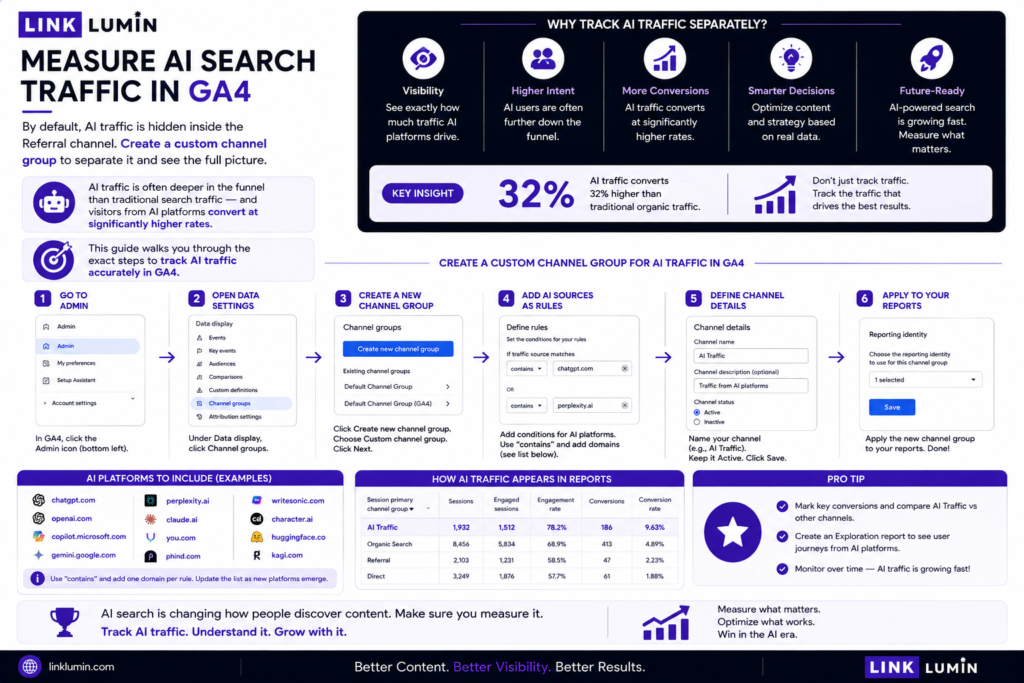
To measure AI search traffic in GA4, you need to create a custom channel group that separates AI sources from organic, referral, and other channels. By default, Google Analytics groups most AI traffic under the Referral channel, making it invisible as a distinct source. AI traffic is often deeper in the funnel than traditional search traffic — and visitors from AI platforms convert at significantly higher rates. This guide walks you through the exact steps to track AI traffic accurately in GA4.
Who This Guide Is For
This is for marketers, analysts, and site owners who want accurate data on how AI search drives website traffic. If AI assistants, AI overviews, or AI agents are sending visitors to your site — you need to see them.
Why AI Traffic Needs Its Own Channel Group
GA4’s default channel group does not recognise most AI traffic sources. AI traffic is often grouped under the Referral channel alongside irrelevant sources. This makes it impossible to separate AI-driven sessions from other referral traffic.
Creating a custom channel group solves this. Custom channel groups help organise AI traffic for better reporting. They let you see how many engaged sessions, key events, and conversions AI search is generating — separate from traditional search, paid ads, and social.
AI referral traffic currently accounts for less than 1% of total traffic (industry benchmark, 2024). But visitors from AI are 4.4 times more valuable than traditional search visitors. That small share drives outsized value — and you can’t act on what you can’t see.
Step 1: Access Channel Groups in GA4
Channel groups are configured in Admin > Data Display > Channel Groups. You need admin permissions to create or edit them.
- Open your GA4 property.
- Click Admin in the bottom-left corner.
- Under Data Display, click Channel Groups.
This is where traffic source dimensions are categorised for all users. GA4 allows two custom channel groups per property.
Step 2: Create a New Channel Group
- Click New Channel Group in the top right corner.
- Give it a descriptive name — for example, “AI Traffic Sources.”
- You will now add individual channels for each AI source you want to track.
A custom channel group can contain up to 25 channels. Most sites will need five to ten to cover major AI platforms.
Step 3: Define Your AI Channels
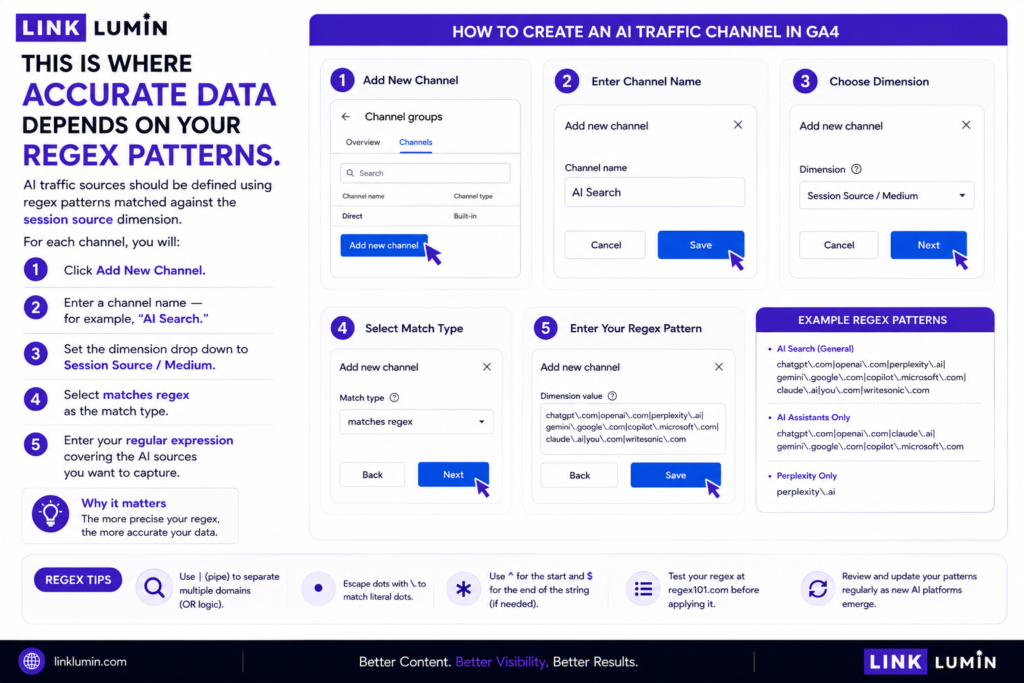
This is where accurate data depends on your regex patterns. AI traffic sources should be defined using regex patterns matched against the session source dimension.
For each channel, you will:
- Click Add New Channel.
- Enter a channel name — for example, “AI Search.”
- Set the dimension drop down to Session Source / Medium.
- Select matches regex as the match type.
- Enter your regular expression covering the AI sources you want to capture.
Example regex for common AI sources:
chatgpt\.com|openai\.com|perplexity\.ai|claude\.ai|gemini\.google\.com|copilot\.microsoft\.com|you\.com|phind\.com
Google Analytics automatically assigns ai-assistant as the medium for some recognised AI traffic. You can also target this directly:
- Dimension: Session Source Medium
- Match type: matches regex
- Value: ai-assistant
This captures traffic where Google itself has labelled the medium as artificial intelligence.
Step 4: Add AI Overviews and AI Mode Sources
AI Overviews in Google Search are a separate consideration. Traffic from AI overviews may arrive via google as the source with modified referral paths — distinct from standard organic search.
Add a dedicated channel:
- Channel name: “Google AI Overviews”
- Select session source: google
- Dimension: session source medium
- Match type: matches regex
- Value: ai-overview|ai.google
Repeat this process to add other channels — for example, Microsoft Copilot traffic:
- Channel name: “Microsoft Copilot”
- Dimension: Session Source / Medium
- Match type: matches regex
- Value: copilot\.microsoft\.com|bing\.com/chat
Click Apply (or click apply at the bottom of the form) after adding each channel.
Step 5: Save and Apply the Custom Channel Group
Once all AI channels are defined, review each for accuracy and click Save. The new channel group will not apply retroactively — it captures data from the point you create it forward.
Step 6: View AI Traffic in Reports
Your custom channel group is now available in the Traffic Acquisition report.
- Open Reports > Acquisition > Traffic Acquisition.
- Click the default dimension dropdown.
- Select your new channel group.
- The data display now shows AI traffic separated by channel.
From here you can:
- Filter by your custom channel to isolate AI traffic only (use the report filter).
- Compare AI sessions against other channels side by side.
- Review engaged sessions, conversion rates, and key events from AI sources.
- Build custom reports to track AI traffic over time.
Step 7: Monitor and Refine Over Time
AI platforms evolve rapidly. New AI agents and AI assistants launch regularly. Your regex patterns will need updating as new AI sources appear.
Set a monthly reminder to:
- Review session source data for unfamiliar domains.
- Add new AI sources to your custom channel group.
- Check whether ai-assistant medium traffic has grown.
- Note whether any traffic from AI is appearing under other channels incorrectly.
AI traffic is projected to grow significantly in the coming years. The sooner you have clean data, the more useful your historical comparison will be.
Understanding What the Data Tells You
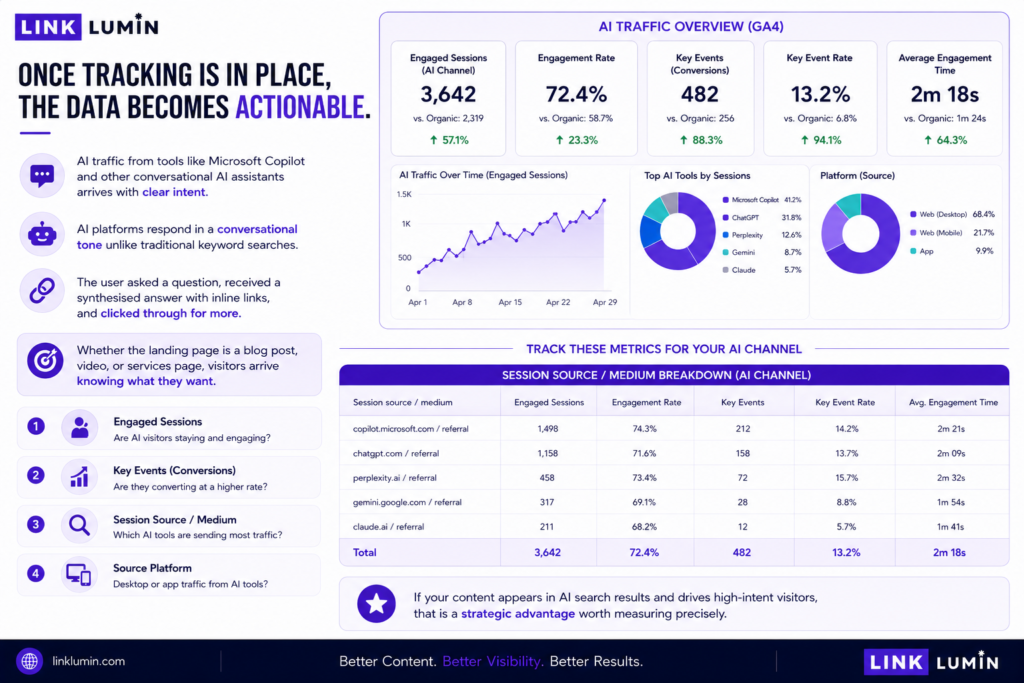
Once tracking is in place, the data becomes actionable.
AI traffic from tools like Microsoft Copilot and other conversational AI assistants arrives with clear intent. AI platforms respond in a conversational tone unlike traditional keyword searches. The user asked a question, received a synthesised answer with inline links, and clicked through for more. Whether the landing page is a blog post, video, or services page, visitors arrive knowing what they want.
Track these metrics for your AI channel:
- Engaged sessions — are AI visitors staying and engaging?
- Key events — are they converting at a higher rate?
- Session source medium — which AI tools are sending most traffic?
- Source platform — desktop or app traffic from AI tools?
If your content appears in AI search results and drives high-intent visitors, that is a strategic advantage worth measuring precisely.
FAQs
1. Why doesn’t Google Analytics show AI search traffic by default?
GA4’s default channel group does not have a built-in AI search category. Most AI traffic arrives via the Referral channel or is tagged with the ai-assistant medium. Without a custom channel group, AI traffic from platforms like AI overviews, AI agents, and AI assistants is lumped with other referral sources — making it impossible to measure separately without creating a dedicated channel.
2. What is a GA4 custom channel group for AI traffic?
A custom channel group lets you define your own categories for organising traffic sources in Google Analytics. For AI traffic, you create channels that use regex to match known AI platforms. This separates AI-driven sessions from organic, referral, and other channels — giving you accurate data on how artificial intelligence tools drive website traffic, engaged sessions, and conversions that the default channel group misses entirely.
3. Which sources should I include in my AI custom channel group?
Include any source that sends AI-referred visitors to your site. Common sources: Google AI Overviews, Microsoft Copilot, and AI agents or AI assistants that surface web content in answers. Key platforms to cover include large language model tools, conversational AI tools, and AI search engines. Artificial intelligence platforms vary in how they label referral traffic — use your GA4 session source data to identify active domains, then add regex patterns for each new source.
4. Does AI traffic appear in the Traffic Acquisition report by default?
Not as a separate category. AI traffic sits inside the default channel group mixed with referral traffic. Once you create a custom channel group and select it as the dimension in the data table, AI traffic appears broken out separately. Add a report filter to isolate only your AI channel and view its key events and engagement metrics in detail.
5. How often should I update my AI channel regex patterns?
Review your regex patterns monthly. New AI agents and AI assistants launch regularly, and your patterns may not capture them automatically. Check your session source data for unfamiliar referring domains. Add new sources to your custom channel group as you find them. AI search traffic is projected to grow significantly — keeping your channel groups current ensures your analytics tools give you accurate data for decision-making.