





The short answer: Google Search Console tells you how your site performs in Google Search — what queries you rank for, which pages Google indexes, and technical issues to fix — while Google Analytics tells you what people do on your site once they arrive, like which pages they visit and whether they convert. Both are free, both come from Google, and used together they give you the full picture.
At LinkLumin, we set up and read both for every client. Here’s exactly what each one does, where they overlap, and when to reach for which.
Who This Guide Is For
This article is for site owners, marketers, and anyone doing SEO who’s confused about which Google tool answers which question — and tired of switching between them without a clear mental model.
If you manage a website and want to understand your search performance and your on-site behavior, this applies directly to you. No developer background needed.
The Common Belief: They’re Basically the Same Thing
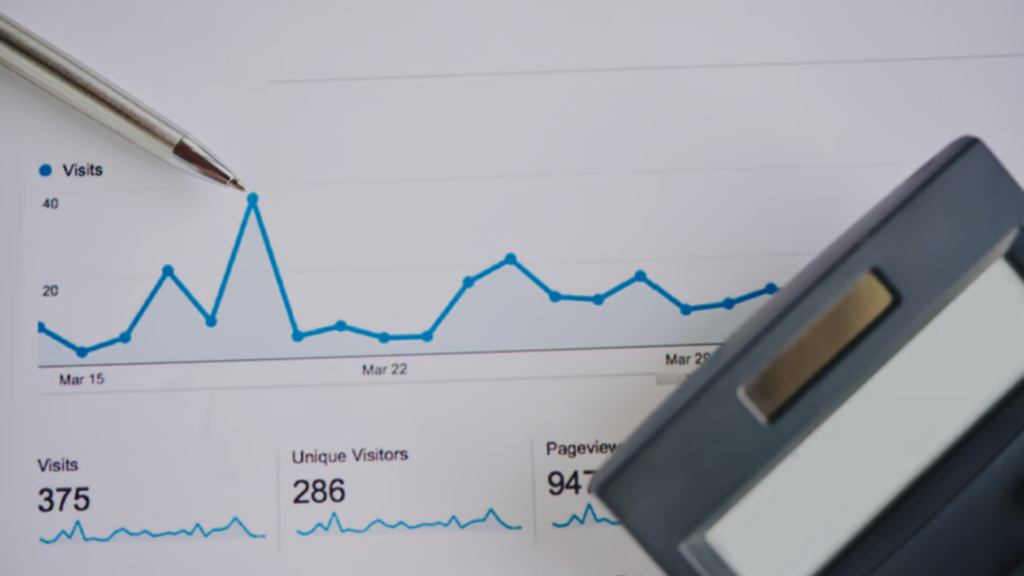
Because both tools are free, both are made by Google, and both show “traffic” data, many people assume they’re interchangeable — or that having one means you don’t need the other.
There’s a surface logic to it. Both display charts, both track your website, both talk about visits. So owners sign up for one, see numbers, and assume they’re covered.
The Gap in That Assumption
Here’s the distinction that resolves everything: the two tools watch opposite sides of the same door. Google Search Console watches what happens before the click — in Google Search results. Google Analytics watches what happens after the click — on your site.
Most explainers list features side by side without giving you that one framing. Once you have it, every difference falls into place. So let’s walk through what each does.
What Google Search Console Does
Google Search Console is a free SEO tool from Google that helps you monitor and troubleshoot your site’s presence in Google Search results. Sign up for Search Console to understand how Google views your site, and it provides insights on how Google indexes your website. It’s a cornerstone of any search engine optimization program.
In short, it gives you an overview of your visibility in search — before anyone reaches your pages. It’s built for SEO specialists and web developers, but any site owner can use it.
Key Search Console Reports and Tools
The value of Search Console lives in its reports. Here are the ones that matter most:
- Performance report — shows clicks, impressions, click-through rate, and average position for your queries, revealing your site’s visibility in Google search results.
- Page indexing report — details indexed and non-indexed pages, so you can see which of all the pages on your site Google has actually added to its index.
- URL Inspection Tool — provides detailed information about crawling and indexing for individual URLs; use it to test and review how Google sees a specific page.
- Core Web Vitals report — evaluates page performance and usability metrics, part of the broader Page Experience Report.
- Sitemaps report — shows how many pages Google discovered after you submit your XML sitemap.
- Links report — details external links and internal link data pointing to your site, a useful read on your site’s authority.
- Enhancements Report — analyzes structured data to improve your search appearance and eligibility for rich results.
- Mobile Usability Report — helps identify mobile-friendliness issues on a website.
Search Console tracks clicks and impressions across queries, pages, countries, and devices, letting you analyze trends over time.
Setting Up and Sharing Search Console Access
Getting started takes a Google account and a verified property. You can add a domain property for comprehensive site monitoring, which covers every subdomain and protocol (both http and https, with and without www), or a URL prefix property for a single address. Verify a domain property through your DNS provider, or use HTML file upload for URL prefix verification. Verification may take up to 48 hours to complete.
Search Console also handles team access. It has two owner types with full permissions, while added users can access data with limited permissions compared to owners. To add someone, go to Settings > Users and permissions, enter their email address, and grant the appropriate access level — a helpful way to give an SEO agency or developer a view without handing over full control.
What Google Analytics Does
Google Analytics picks up where Search Console leaves off — the moment a user lands on your site. It uses a tracking snippet to collect data on on-site behavior: how many users visit, which pages they view, how long they stay, where they came from, and whether they complete goals like purchases or sign-ups. It can even record engagement with specific content, including videos.
Where Search Console reports on search performance, Analytics reports on engagement and conversions displayed across its dashboards. It answers “what did visitors do, and did it lead to value?” rather than “how did they find me?” One note: the two use entirely separate data collection, which is why their numbers differ.
Finding #1: They Measure Different Sides of the Same Journey
Search Console counts clicks from Google search results. Analytics counts sessions on your site. These will never match exactly — different systems, different definitions, different moments in the process. Understanding that they measure different things is the key to using both without confusion.
Finding #2: Search Console Owns the “Before the Click” Story
For anything about how Google sees your site, Search Console is the source of truth. It’s where you monitor rankings, discover which queries drive impressions, and catch problems that hurt visibility.
When a client’s traffic dropped, Search Console was always our first stop: had impressions fallen (a visibility problem) or had clicks fallen while impressions held (a relevance problem)? Analytics can’t answer that — it only sees users who already arrived.
Finding #3: Analytics Owns the “After the Click” Story
Once users are on the site, Search Console goes quiet and Analytics takes over. Conversion rates, page value, user flow, and revenue all live in Analytics.
If a page ranks well and gets clicks but no one converts, that’s an Analytics investigation, not a Search Console one. The clicks arrived; something on the page failed. Only on-site behavior data can tell you what.

Finding #4: The URL Inspection Tool Is the Unsung Hero
Among all the Search Console tools, the URL Inspection Tool earned its keep repeatedly. It shows exactly how Google crawled and indexed a specific page — the last crawl date, whether the page is indexed, and any errors blocking it.
When a page wouldn’t appear in Google Search, this tool told us why: a crawl issue, a noindex tag, or a page simply not yet discovered. You can request indexing directly from it after you fix the problem — no Analytics report comes close to this diagnostic power.
Finding #5: Core Web Vitals Bridge Both Worlds
The Core Web Vitals report sits interestingly between the two tools’ domains. It evaluates page performance and loading usability — technically a search signal reported in Search Console, but it directly reflects the user experience Analytics measures in behavior.
In our work, poor Core Web Vitals showed up in both places: as a page experience flag in Search Console and as higher bounce in Analytics. Fixing them helped both search visibility and on-site behavior — a reminder the two tools describe one connected reality.
Finding #6: Search Console Alerts You; Analytics Rarely Does
Search Console actively watches for problems. Google sends alerts for spam, mobile usability issues, or security problems, and users receive email alerts for new issues found on their site — including the serious ones, like a manual action penalty.
A manual action means a human reviewer at Google has penalized your site for violating guidelines, and Search Console is the only place you’ll see it and the guidance to fix it. If you get stuck, Google’s Search Central community offers support — you can even post a comment to get help from other owners and Googlers. Analytics has no equivalent early-warning system, so if you only check Analytics, you can miss a problem until traffic has collapsed.
Finding #7: Connecting Them Multiplies the Value
The real win is linking the two. When you connect Search Console to Analytics, you can see search queries alongside on-site behavior — matching the terms that brought users in with what they did afterward.
This closed the loop for us constantly: a query might drive lots of clicks but poor engagement, revealing a mismatch between what users expected and what the page delivered. Neither tool shows that alone; together they do.
What Each Tool Is Best For
Reach for Google Search Console when you want to:
- Monitor rankings, impressions, and clicks from Google Search.
- Check which pages are indexed and fix crawl errors.
- Submit a sitemap and manage how Google discovers your site.
- Diagnose visibility drops, manual actions, and technical SEO issues.
- Review structured data, rich results, and Core Web Vitals.
Reach for Google Analytics when you want to:
- Understand on-site behavior: pages viewed, time on site, user flow.
- Measure conversions, revenue, and goal completions.
- Analyze traffic from all sources, not just Google Search.
- See how different audiences and channels perform.
Key Findings: The Summary
- Search Console measures your presence in Google Search; Analytics measures behavior on your site.
- Their numbers won’t match, because they count different things at different moments.
- Search Console is your source for indexing, rankings, and search-health alerts like manual actions.
- Analytics is your source for engagement, conversions, and on-site value.
- Core Web Vitals bridge both, affecting search visibility and user experience.
- Connecting the two tools gives the complete before-and-after picture.
Google Search Console vs Google Analytics isn’t really a competition — they’re two halves of one measurement system. That’s how we approach analytics at LinkLumin: use Search Console to win the click, use Analytics to make the click count.
FAQs
1. What’s the main difference between Google Search Console and Google Analytics?
Google Search Console measures how your site performs in Google Search — queries, impressions, clicks, indexing, and technical issues — before users reach your pages. Google Analytics measures what users do after they arrive: pages viewed, time on site, and conversions. One covers acquisition from search; the other covers on-site behavior.
2. Do I need both Google Search Console and Google Analytics?
Yes, if you want the full picture. Search Console answers “how do people find me in Google?” and Analytics answers “what do they do once here?” Neither replaces the other, and both are free. Most sites should set up both and connect them for combined reporting.
3. Why don’t the numbers in Search Console and Google Analytics match?
Because they count different things. Search Console counts clicks from Google search results; Analytics counts sessions on your site using its own tracking. Differences in definitions, timing, filtering, and what each system can even see mean the totals will never align exactly — and that’s expected, not an error.
4. What are Search Console reports most useful for?
Search Console reports are best for search health and visibility. The Performance report shows clicks and positions, the Page indexing report shows indexed and non-indexed pages, the Core Web Vitals report tracks page experience, and the Links report details external links and internal links. The URL Inspection Tool diagnoses how a specific page is crawled and indexed.
5. How do I know if my site has a manual action penalty?
Only Google Search Console shows manual actions. If a human reviewer at Google penalizes your site for violating guidelines, you’ll find it under the Manual Actions report, along with guidance to fix the issue and submit a reconsideration request. Google Analytics won’t reveal this, which is one reason every site owner should monitor Search Console.